I had a script that assumes something was an array, then failed when it wasn’t, so I needed a little checking:
$variable -is [system.array] will say True if it is an array, or False if not. You can also do $variable -isnot [system.array] and expect the exact opposite.
I chose to do this:
PowerShell
1
if($variable-isnot[system.array]){dosome code expecting the$variableis not an array}
OR
PowerShell
1
if($variable-is[system.array]){dosome other stuff with$variable[0]being an array}
Some of our older servers are running out of disk space on C:, so I needed to change the SCCM cache directory to D:. By default, this is where I wanted it anyway on our servers, leaving C: only for OS-related files. My OSD Task Sequences all have SMSCACHEDIR set to a folder on D in the client configuration step, but I noticed it wasn’t actually working. You know I had to find a way to fix that using powershell :D It actually ended up being really REALLY easy to do…
I did an in-place upgrade of vCenter to 5.0 from 4.1 and everything seemed to go fine. When I checked heartbeat, it was barking about some services, so I checked and sure enough, VMware VirtualCenter Management Webservices wouldn’t start.
I checked the commons-daemon log file (located here Program Files\VMware\Infrastructure\tomcat\logs) and found this:
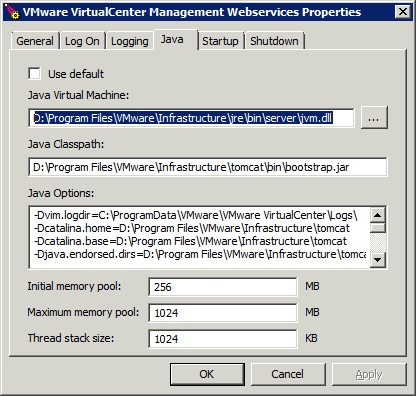
I did some googling, which had suggestions such as lowering the VM heap size from 1024MB to 512MB, checking for port conflicts, etc. What fixed it for me was specifying the location of jvm.dll in the jre that came with the vCenter installation. It’s highlighted in the attached pic, which I installed on D, yours may be different. After that, vctomcat started fine.
A few months ago, a reader by the name of Tolga ŞENTEKİN came across This Post looking for something to do a little more. Tolga was looking to script out DR for some VMs he has that use NetApp with & without RDMs. He & I spent about three weeks putting a script together to do the following:
Breaks snapmirror replication
Creates flexclones of the replicated volumes (given you’re licensed for it)
Map them to the esx hosts on the disaster recovery site
Adds and resignatures the LUNs and adds the VMs inside them to the inventory
After that, if you have RDM LUNs attached to the VMs, you first remove the old RDM Mappings from the VM and add the actual LUNs in the disaster site with the same LunID’s
If it’s all done you can start the Vm’s in the disaster site.
Tolga wrote the vast majority of the script, with me only contributing some of the datastore, LUN, & iSCSI stuff.
I uploaded it and have provided a link, since I didn’t want it to get sauteed up from a C&P.
Click HERE to download a copy of the script (right-click, save-as). Obviously, you will need to edit & fine tune for your environment, but he & I wanted to share with the community.
I upgraded my vCenter to 4.1u1 while my VUM was still 4.0 (u2 iirc). I decided to upgrade my VUM to match, and all was going well until I got this message:
Error 25085 – Setup failed to register VMware Update Manager extension to VMware vCenter Server
Ever wonder how many users grant full control to Everyone on shares they created? This opens a huge risk, as any virus/worm can write itself to these shares, given the NTFS permissions allow them as well. At any rate, I don’t think it’s a good idea, so I scripted it out and found something like 470 shares where Everyone was granted FullControl access in my environment. OUCH!
I built 38 new servers and needed to add a domain group to the local administrator group of all of them. Instead of using computer management (compmgmt.msc) to connect to each one, or a GPO, I decided to use PowerShell, and found it’s actually pretty simple to do.